Infinity Circle/Sphere Render Engine
I have recently been obsessed with the idea of an infinity sphere. For more information on what an infinity sphere is, see my page on the video I made in blender here. I was happy with its result for a while, but a few things still bothered me. There were quite a few artifacts that while they looked cool, they didn't seem like they were accurate to what would appear in real life. Also, each image took around 10 minutes to render. Both of these issues were probably caused by the fact that I had to approximate a sphere with a large number of faces. To solve this, I started work on a custom raytracing engine in Processing.
First, I started with a 2-dimensional version of the problem: an internally reflective circle with a light-emitting circle inside, projected into a one-dimensional image.


As you can see, it worked. On the left side of the sketch windows is the image it rendered out (they both have the light in the same position so the image is the same). By moving the mouse, I could see how a 'light ray' would bounce if it started from the 'camera' on the left and moved towards the mouse. As to how it works, it's actually fairly simple. I made a class called Ray, which handles all of the intersection and bounce algorithms. When created, a position, a direction (an angle), and a maximum number of bounces is specified. From there, the ray calculates all of its intersections with the main internally-reflective circle (using a formula I found online). It chooses the point that is farthest away, so that it actually enters the circle like it's supposed to. Then, it calculates the angle of the tangent line to the circle where it intersected and uses that to calculate the angle at which it should bounce off the inside.
Now, it was time to take this into 3 dimensions.
I started with the same algorithms, but with an extra dimension. While storing direction as an angle may have worked in 2 dimensions, I quickly realized that it was more conventional to do reflections in 3-dimensions with a vector (after searching it up).


boolean bounce(Sphere s, int shade, boolean show) {
PVector[] points = intersect(s, false);
if(points == null) {
return false;
}
float dist0 = sqrt(sq(points[0].x-pos.x) + sq(points[0].y-pos.y) + sq(points[0].z-pos.z));
float dist1 = sqrt(sq(points[1].x-pos.x) + sq(points[1].y-pos.y) + sq(points[1].z-pos.z));
int farthest = 0;
if(dist0 == 0) {farthest = 1;}
else if(dist1 > dist0) {farthest = 1;}
PVector bouncePoint = points[farthest];
PVector bounceNormal = PVector.sub(s.getPos(), bouncePoint);
bounceNormal = PVector.div(bounceNormal, bounceNormal.mag());//normalizes it
PVector bounceAngle = PVector.sub(dir, PVector.mult(bounceNormal, 2*PVector.dot(dir, bounceNormal)));
pos.set(bouncePoint);
dir.set(bounceAngle);
return true;
}
Now all I had to do was create a camera object that would handle creating all of the rays for each pixel of the image. The way I achieved this was by calculating the position of the four corners of its 'image sensor', and interpolating between them to find individual pixels. Here's some of the math behind that
void calculateCorners() {
updateRot();
PVector a = rot;
float sr = pythag(sensor.z, sensor.y/2);
float cornerPitch = atan2(sensor.y/2, sensor.z);
PVector right = new PVector(pos.x + (sensor.x/2)*cos(a.x + HALF_PI), pos.y + (sensor.x/2)*sin(a.x + HALF_PI), pos.z);
PVector left = new PVector(pos.x - (sensor.x/2)*cos(a.x + HALF_PI), pos.y - (sensor.x/2)*sin(a.x + HALF_PI), pos.z);
tl = new PVector(left.x + sr*cos(a.y + cornerPitch)*cos(a.x), left.y + sr*cos(a.y + cornerPitch)*sin(a.x), left.z + sr*sin(a.y + cornerPitch));
bl = new PVector(left.x + sr*cos(a.y - cornerPitch)*cos(a.x), left.y + sr*cos(a.y - cornerPitch)*sin(a.x), left.z + sr*sin(a.y - cornerPitch));
tr = new PVector(right.x + sr*cos(a.y + cornerPitch)*cos(a.x), right.y + sr*cos(a.y + cornerPitch)*sin(a.x), right.z + sr*sin(a.y + cornerPitch));
br = new PVector(right.x + sr*cos(a.y - cornerPitch)*cos(a.x), right.y + sr*cos(a.y - cornerPitch)*sin(a.x), right.z + sr*sin(a.y - cornerPitch));
}
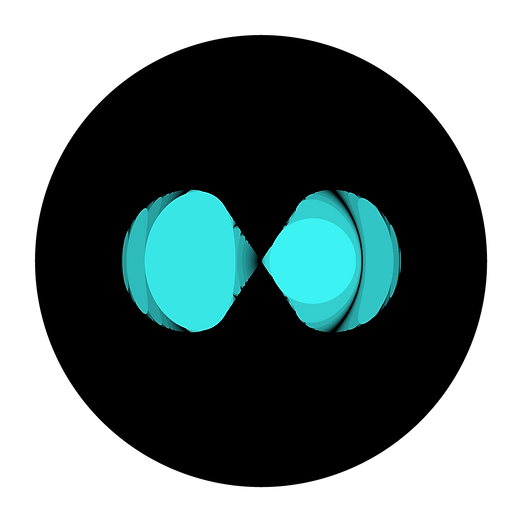

After that, it was a simple matter of putting all of the generated brightness values into an image and exporting it! I'd say these still look pretty cool even if they're simpler than the ones I made with Blender.

Here's the Processing file, in case you wanted to try it for yourself.
I can't upload a .pde file, so you'll have to copy-paste this into an empty sketch.